


How to reset a Windows Administrator password.
- Log into you customer portal with your username and password.
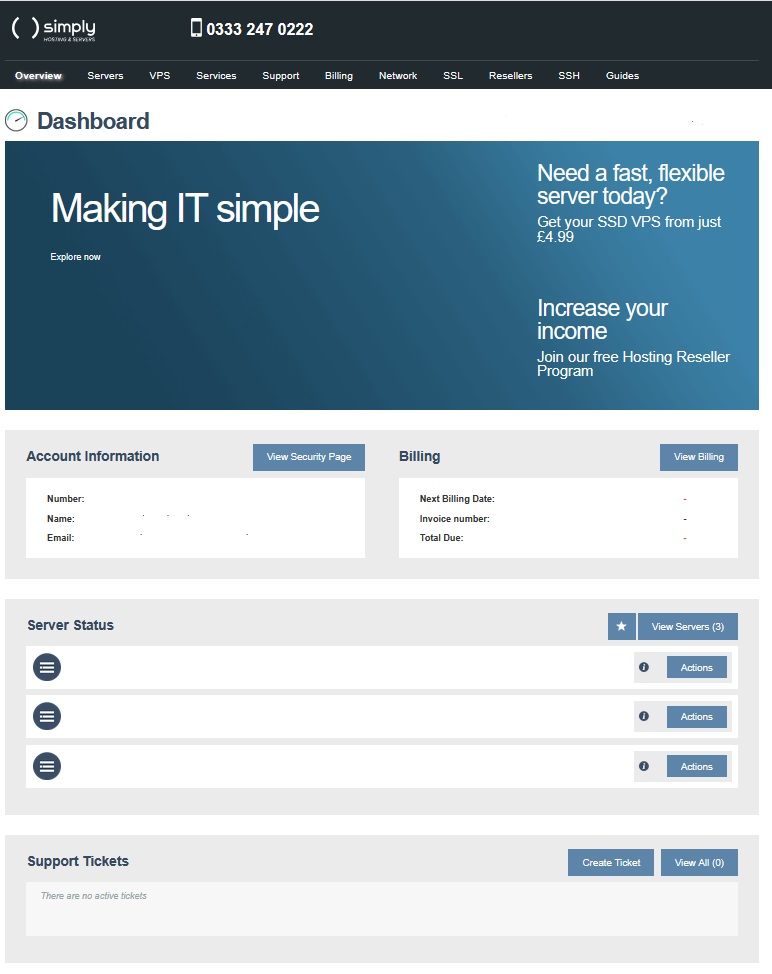
- Click on the ‘VPS’ tab.
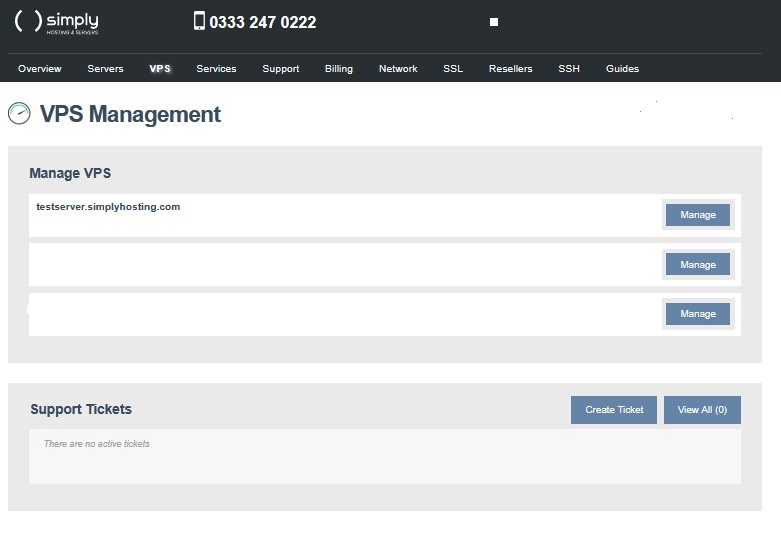
- Select the server you wish to manage and click on ‘Manage’.
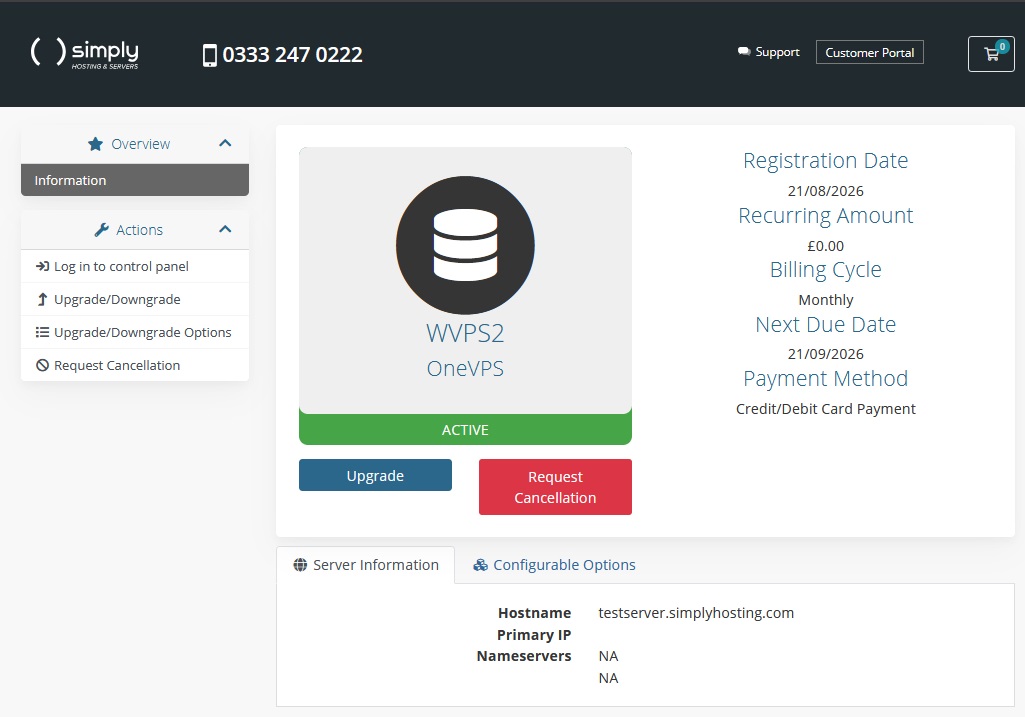
- Click ‘Log in to Control Panel’ and select the server from the list displayed.
To reset your Windows machine’s password in the event of it being lost/expired. Head to to the Overview page of the VPS you wish to reset.
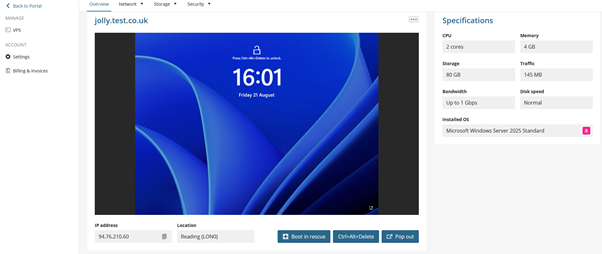
- Select the “boot into rescue mode button located to the bottom right of the VPS window.
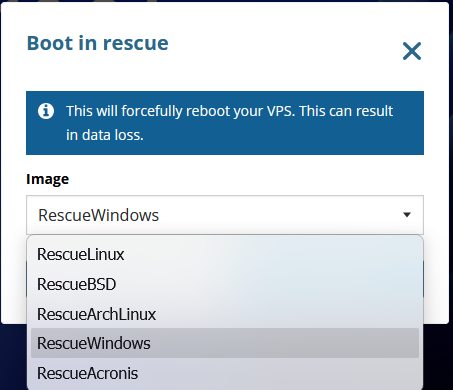
- Select the RescueWindows Option. The server will then reboot and load into the selected rescue image.
- Once it is loaded into the Rescue image, Select the appropriate language option for your country/keyboard.
- Select the troubleshot, Then Command prompt to open up the system command line
Run the following commands in order:
- e:
- cd /windows/system32
- ren utilman.exe utilman.bak
- copy cmd.exe utilman.exe
- Yes – To confirm overwrite to allow the change.
- Select the 3 … at the top right of your console and reboot the system back into your Windows installation.
- Once windows is loaded back into the login prompt, Press the CTRL+ALT+DEL shortcut to bring up the login screen and select the Accessibility button on the bottom right of the screen to bring up a new CMD prompt.
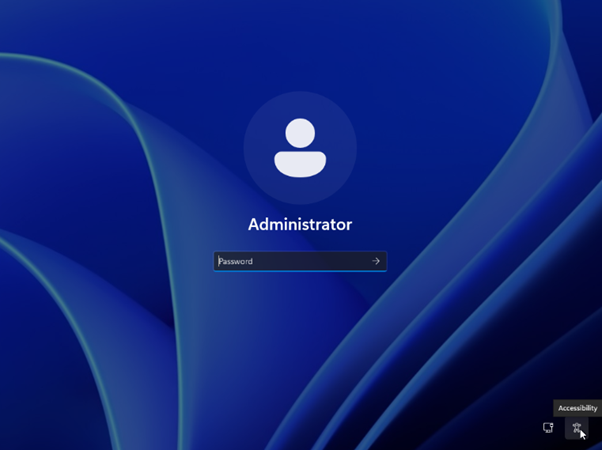
- Run the following command relating to the user you want to reset, In this case we will use the default “administrator”.
- Run the following command: net user administrator SecurePassword
Info: Where it states “SecurePassword” this is the password you are setting for that user. So ensure this is noted down for the future. Once inside the system you can also change the password through normal means and set yourself hints in the event you lose it.
Once that command is run you should have successfully updated your password so close the CMD popup to go back to the login page and login with your new details.
You now need to reverse the changes made previously which will undo the changes we made to accessibility to run the CMD and put windows back to its previous state.
- Click the Start button and search CMD and run as administrator
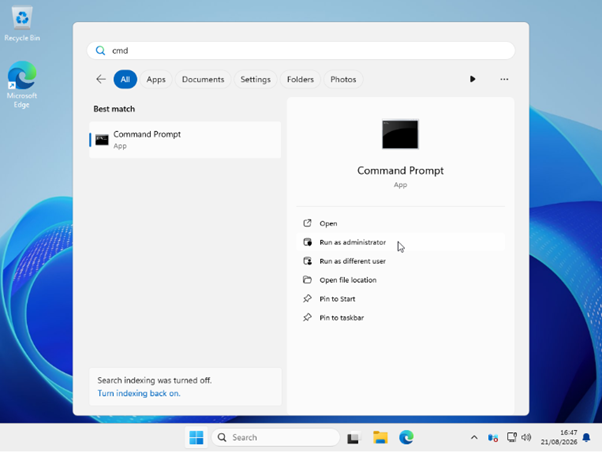
Run the following commands:
- cd /windows/system32
- ren utilman.bak utilman.exe
.