


Reinstall your Linux One VPS.
Please note this will wipe all the data so ensure you have a backup before proceeding.
- From the VPS tab in your customer portal, locate the server you wish to reinstall and click on ‘manage’
- Log into the Control Panel and select the server you wish to reinstall.
- Click on the 3 dots and select reinstall, at this point you should be presented with all the available packages for your product.
- Select your required package and version.
- You will then be presented with 3 or 4 options (depending on the ISO availability from the respective distribution.
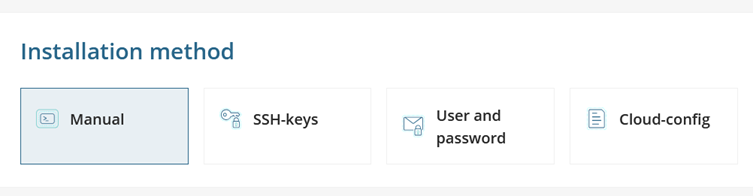
- We would recommend using ‘SSH-Keys’.
- SSH-Keys – enter the Username (you can use Root, but we would recommend choosing an alternative to increase security).
- Add you Public SSH key if not already present (please see the relevant documentation to assist)
- Click reinstall.
- User and password – enter a username of your choice (root can be used) and a complex password which you will be required to change during the first logon.
- Click reinstall.
- Within a few minutes the installation will have completed, and you should be able to connect via the console.
- Manual install – this will simulate an install from an ISO as if it was attached to the server where you will be required to step through the process.
- Please note permit root login via ssh is disable by default, please see our support document on how to enable it via the console.